Task History
This article explains how to view and access the complete task history for individual rooms in the roommaster Web housekeeping module for housekeeping managers.
Overview
The Task History feature provides a comprehensive view of all tasks that have been assigned to a specific room, including current and past tasks. This feature allows housekeeping managers to review task details, track changes, view comments, and monitor the complete lifecycle of each task associated with a room.
Important Note: Task history displays all tasks for the selected room, including today's active tasks and historical records, providing complete visibility into room maintenance activities.
Accessing Task History
When Available
The Task History feature is available:
- For Any Room - All rooms in the system have accessible task history
- From Room Record Details - Accessed through the room's side panel
- Real-time Updates - Includes today's tasks and all historical tasks
Process
To access the task history for a specific room:
-
Select a Room - Click on the room you want to view from the room list
-
Open Side Panel - The room record details side panel will open displaying room information
-
Click History Button - Locate and click the History button in the side panel
-
Select Task History - Choose Task History from the available history options
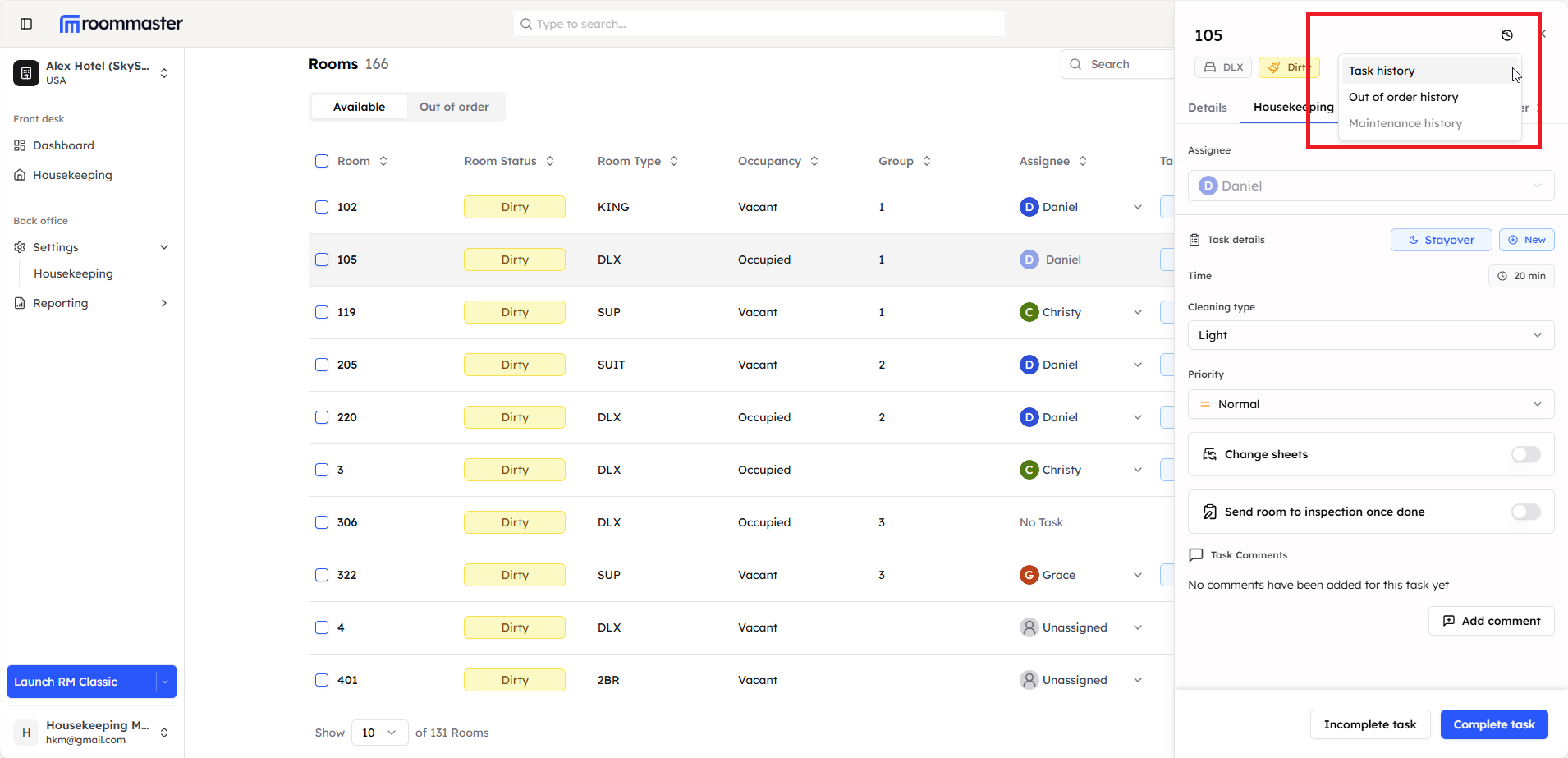
- View Task History Modal - A modal window will open displaying all tasks for the selected room
Result
After accessing task history:
- Complete Task List - All tasks for the room are displayed in chronological order
- Current and Past Tasks - Includes today's task and all historical tasks
- Detailed Information - Each task entry shows comprehensive task data
Task History Information
Task Overview Display
The task history modal displays the following information for each task:
- Task ID - Unique identifier for the task
- Task Date - The date the task was created or scheduled
- Status/Type - Current status and type of the task
- Cleaning Type - The type of cleaning assigned (e.g., checkout clean, stayover, etc.)
- Assignee - The housekeeper assigned to the task
- Task Status - Current status of the task (e.g., pending, in progress, completed)
- Priority - Indicates whether the task has high or normal priority
- Change Sheets Required - Shows if sheet changes were required for the task
- Arrivals - Indicates if the room has an arrival scheduled
- Departures - Indicates if the room has a departure scheduled
Viewing Detailed Task Information
To view complete details for a specific task:
-
Click on a Task - Click on any task entry in the task history list
-
View Task Details - The system displays comprehensive information including:
- All task information fields
- Task completion details
- Assignment history
-
View Comments - Any comments that were added to the task are displayed
- Comments from housekeepers
- Manager notes
- Task-specific instructions
-
View Attached Photos - If any photos were attached to the task, they are displayed
- Photos taken during task execution
- Before/after photos
- Issue documentation
-
Review Change Logs - The change logs section displays each action performed on the task
- Task creation
- Status changes
- Assignment changes
- Completion timestamps
- Any modifications made to the task
Result
After viewing detailed task information:
- Complete Task Audit - Full visibility into task lifecycle from creation to completion
- Documentation Review - Access to all comments and photos associated with the task
- Change Tracking - Clear record of all actions and modifications made to the task
Use Cases
Review Task History Scenarios
- Performance Tracking - Review a housekeeper's task completion history for a specific room
- Issue Investigation - Investigate recurring problems or complaints for a particular room
- Audit Trail - Review the complete history of task assignments and completions
- Quality Control - Monitor cleaning consistency and adherence to standards over time
Task Detail Review Scenarios
- Comment Review - Check what issues or notes were reported during previous tasks
- Photo Documentation - Review attached photos to understand room conditions or issues
- Change Log Analysis - Track when and why tasks were modified, reassigned, or cancelled
- Verification - Confirm task completion details and timestamps for reporting purposes
Troubleshooting
Common Issues
Task History Not Displaying
- Check Room Selection - Ensure you have selected the correct room from the room list
- Verify Access - Confirm you have the necessary permissions to view task history
- Refresh Panel - Close and reopen the side panel if data doesn't load
- System Connection - Check your internet connection and refresh the page
Photos or Comments Not Visible
- Check Task Details - Ensure you've clicked on a specific task to view detailed information
- Verify Attachments - Confirm that photos or comments were actually added to that task
- Browser Cache - Clear browser cache if images fail to load properly
Change Logs Incomplete
- Review Full List - Scroll through the entire change log section for all entries
- Check Timestamps - Verify you're looking at the correct task by checking the date
- System Updates - Some older tasks may have limited change log information
- Contact Support - If change logs are missing for recent tasks, contact technical support
Still Need Help?
For additional assistance with task history:
- Contact support at support@roommaster.com
- Visit our Knowledge Base
- Check your internet connection and refresh for real-time updates